Physical Address
304 North Cardinal St.
Dorchester Center, MA 02124
Physical Address
304 North Cardinal St.
Dorchester Center, MA 02124

Kali Linux is a Debian-based Linux distribution made for penetration testing, security auditing, digital forensics, and other security-related tasks. It includes many useful command-line tools for managing files, installing packages, checking system information, working with networks, and performing security testing.
The Kali Linux terminal allows you to control your system using simple commands. In this guide, you will learn useful Kali Linux terminal commands from basic to advanced levels.
Here’s what you can learn with these Kali Linux commands:

Below are some of the most common Kali Linux terminal commands for beginners. You can use these commands to work with files and folders, install software, check system details, and manage your Linux system easily.
Check the current directory.
pwd
List files and folders.
ls
List files with detailed information.
ls -l
Show hidden files.
ls -la
Change to another directory.
cd /home
Go to your home directory.
cd ~
Go back to the previous directory.
cd ..
Clear the terminal screen.
clear
Show the current username.
whoami
Show the current date and time.
date
Display the calendar.
cal
Show the hostname.
hostname
Show the command history.
history
Close the terminal session.
exit
These commands are useful for basic navigation and checking information about your current terminal session.
These commands are used to manage files and directories in Kali Linux. You can use them to create, open, copy, move, rename, and delete files and folders from the terminal.
Create a new directory.
mkdir myfolder
Create multiple directories.
mkdir folder1 folder2 folder3
Create a file.
touch file.txt
Display the contents of a file.
cat file.txt
Open a file using Nano.
nano file.txt
Copy a file.
cp file.txt backup.txt
Copy a directory.
cp -r folder1 folder2
Move a file.
mv file.txt /home/
Rename a file.
mv old.txt new.txt
Rename a directory.
mv oldfolder newfolder
Remove a file.
rm file.txt
Remove an empty directory.
rmdir myfolder
Remove a directory and its contents.
rm -r myfolder
List the size of files and directories.
du -sh *
Check available disk space.
df -h
Linux uses permissions to control who can read, write, or execute files. You can check and change permissions using the following commands.
Show file permissions.
ls -lGive the owner execute permission.
chmod u+x script.shMake a file executable.
chmod +x script.shSet read, write, and execute permissions for the owner.
chmod 700 script.shSet common read and execute permissions.
chmod 755 script.shChange the owner of a file.
sudo chown username file.txtChange the group of a file.
sudo chgrp groupname file.txtKali Linux uses package management commands to install, update, remove, and manage software from the terminal. You can use these commands to quickly install the tools and packages you need.
Update the package list.
sudo apt update
Upgrade installed packages.
sudo apt upgrade
Update and upgrade the system.
sudo apt update && sudo apt upgrade -y
Install a package.
sudo apt install package-name
Remove a package.
sudo apt remove package-name
Remove a package and its configuration files.
sudo apt purge package-name
Search for a package.
apt search package-name
Show package information.
apt show package-name
List installed packages.
apt list --installed
Remove unused packages.
sudo apt autoremove
Clean downloaded package files.
sudo apt clean
You can replace package-name with the package you want to install or manage.
You can use system information commands to check the kernel version, CPU, memory, disk space, running processes, and other important system details.
Show the Linux kernel version.
uname -r
Show detailed kernel information.
uname -a
Show operating system information.
cat /etc/os-release
Display CPU information.
lscpu
Display memory information.
free -h
Display PCI devices.
lspci
Display USB devices.
lsusb
Show system uptime.
uptime
Show logged-in users.
who
Show detailed information about logged-in users.
w
Show the hostname and related information.
hostnamectl
These commands are useful when you want to understand your hardware, operating system, and current system status.
Process management commands help you view and control programs running on your Kali Linux system. You can check active processes, find specific processes, monitor system activity, and stop processes from the terminal.
Show running processes.
ps
Show all running processes.
ps aux
Display processes in real time.
top
A more advanced process viewer.
htop
Find a running process.
pgrep firefox
Stop a process using its process ID.
kill PID
Forcefully stop a process.
kill -9 PID
Find the process ID of a program.
pidof firefox
List background jobs.
jobs
Bring a background job to the foreground.
fg
Send the current process to the background.
bg
These commands are useful for controlling programs and checking which processes are running on your system.
Text searching and processing commands help you find, read, filter, and work with text in the terminal. You can search inside files, find specific words, count lines, and process text using simple commands.
Search for text inside a file.
grep "hello" file.txt
Search without considering uppercase and lowercase letters.
grep -i "hello" file.txt
Search recursively inside a directory.
grep -r "hello" folder/
Find a file by name.
find . -name "file.txt"
Find all .txt files.
find . -name "*.txt"
Show the first lines of a file.
head file.txt
Show the last lines of a file.
tail file.txt
Follow a file as it changes.
tail -f logfile.txt
Count lines, words, and characters.
wc file.txt
Sort text.
sort file.txt
Remove duplicate lines.
uniq file.txt
Display a file one screen at a time.
less file.txt
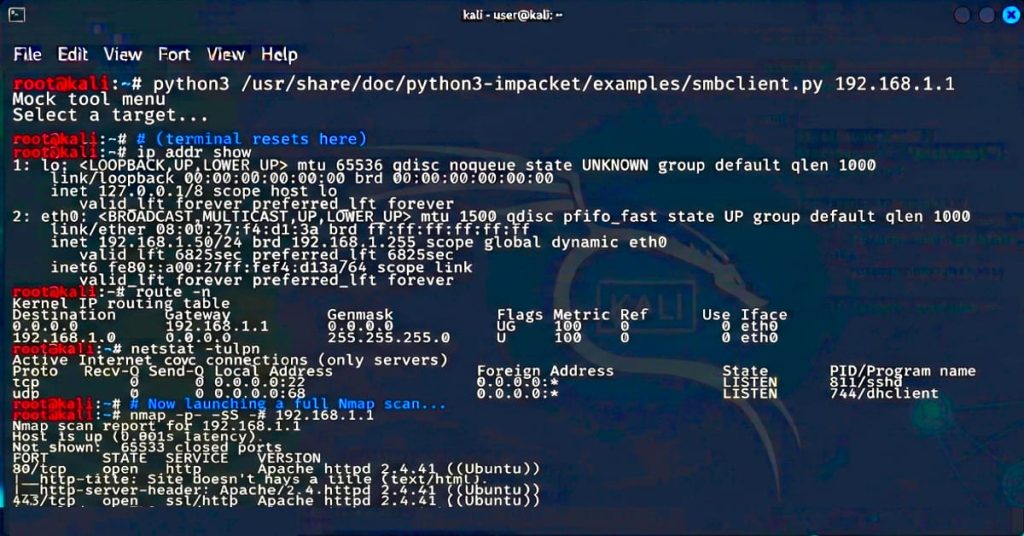
Networking commands help you check and manage network connections in Kali Linux. You can use them to view IP addresses, test connections, check open ports, find network information, and troubleshoot common network problems.
Show network interfaces.
ip addr
Show network links.
ip link
Show the routing table.
ip route
Check connectivity to a host.
ping example.com
Trace the route to a host.
traceroute example.com
Show DNS information.
dig example.com
Perform a simple DNS lookup.
nslookup example.com
Show active network connections.
ss -tuln
Show the ARP/neighbor table.
ip neigh
Download a file from a URL.
wget https://example.com/file.zip
Make an HTTP request.
curl https://example.com
Show HTTP response headers.
curl -I https://example.com
You can use these commands to create and extract common archive formats.
Create a ZIP archive.
zip archive.zip file.txt
Create a ZIP archive containing a directory.
zip -r archive.zip folder/
Extract a ZIP archive.
unzip archive.zip
Create a TAR archive.
tar -cvf archive.tar folder/
Extract a TAR archive.
tar -xvf archive.tar
Create a compressed TAR archive.
tar -czvf archive.tar.gz folder/
Extract a .tar.gz archive.
tar -xzvf archive.tar.gz
List the contents of a TAR archive.
tar -tf archive.tar
User and group commands are used to manage users and groups in Kali Linux. You can check user information, create or remove users, change passwords, and manage group memberships from the terminal.
Show your username.
whoami
Show user ID information.
id
List users.
cat /etc/passwd
List groups.
cat /etc/group
Create a new user.
sudo adduser username
Change a user’s password.
sudo passwd username
Add a user to a group.
sudo usermod -aG groupname username
Switch to another user.
su username
Run a command with administrator privileges.
sudo command
Disk and storage commands help you check and manage storage space in Kali Linux. You can view available disk space, check folder sizes, list mounted drives, and manage storage in the terminal.
Show mounted filesystems.
mount
Show disk usage.
df -h
Show directory size.
du -sh folder/
List block devices.
lsblk
Show disk information.
sudo fdisk -l
Check disk space for the current directory.
du -sh .
Environment and shell commands help you work with the Kali Linux terminal and control your shell environment. You can check environment variables, view your current shell, change settings, and manage your terminal session.
Display all environment variables.
env
Display the PATH variable.
echo $PATH
Show the current shell.
echo $SHELL
Set a temporary environment variable.
export NAME="Kali"
Display a variable.
echo $NAME
Show the command used to locate a program.
which python3
Find all matching commands.
whereis python3
Check whether a command is available.
command -v python3
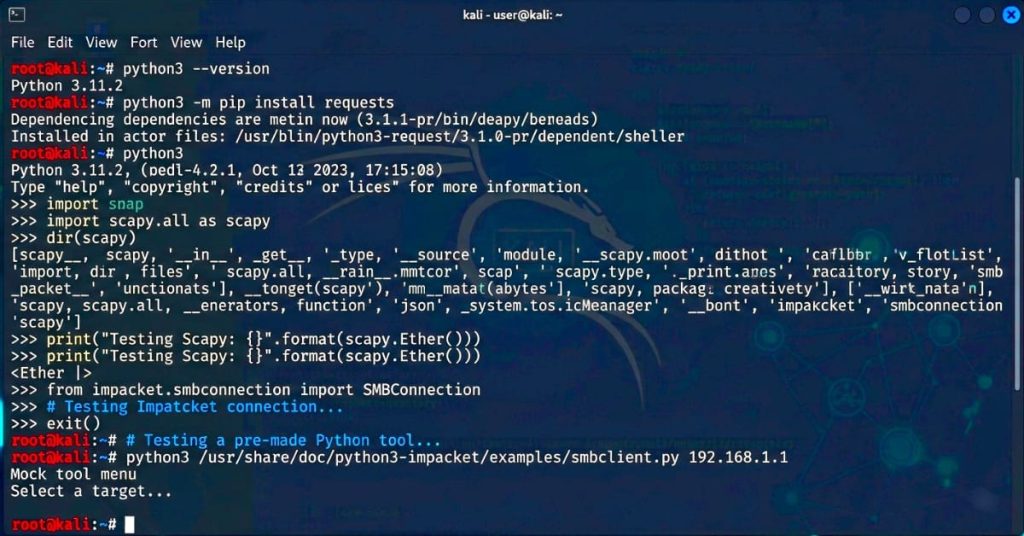
Kali Linux comes with Python support, and it is easy to run Python programs from the terminal. You can use Python commands to check the installed version, run scripts, install packages, and test Python code.
Check the Python version.
python3 --version
Start Python.
python3
Run a Python script.
python3 script.py
Install a Python package.
python3 -m pip install package-name
Show installed Python packages.
python3 -m pip list
Create a virtual environment.
python3 -m venv myenv
Activate a virtual environment.
source myenv/bin/activate
Deactivate the virtual environment.
deactivate
Git is a popular tool for managing source code and working with online repositories. In Kali Linux, you can use Git commands to download projects, update repositories, view changes, and manage your own code.
Check the Git version.
git --version
Clone a repository.
git clone https://github.com/user/project.git
Go to a repository.
cd project
Show repository status.
git status
Download the latest changes.
git pull
Show Git branches.
git branch
Create a new branch.
git branch new-branch
Switch to a branch.
git switch new-branch
Show commit history.
git log
Git is commonly used when installing open-source tools from source repositories.
SSH commands allow you to connect to remote computers and servers securely from the Kali Linux terminal. You can use SSH to log in to a remote system, transfer files, and manage a server using command-line tools.
Connect to an SSH server.
ssh username@server-ip
Connect using a specific port.
ssh -p 2222 username@server-ip
Generate an SSH key.
ssh-keygen
Copy an SSH key to a server.
ssh-copy-id username@server-ip
Copy a file to a remote system.
scp file.txt username@server-ip:/home/username/
Download a file from a remote system.
scp username@server-ip:/home/username/file.txt .
Services and system commands help you manage important parts of your Kali Linux system from the terminal. You can start or stop services, check their status, restart system services, and control other system operations.
Check the status of a service.
sudo systemctl status service-name
Start a service.
sudo systemctl start service-name
Stop a service.
sudo systemctl stop service-name
Restart a service.
sudo systemctl restart service-name
Enable a service at boot.
sudo systemctl enable service-name
Disable a service at boot.
sudo systemctl disable service-name
List running services.
systemctl --type=service --state=running
These commands are useful for managing services such as SSH, web servers, databases, and other applications.
Kali Linux also includes many advanced terminal commands for system administration, networking, troubleshooting, and security testing. You can use them to perform more detailed tasks and work with different tools from the command line.
Find information about a command.
man ls
Show command help.
ls --help
Show the location of a command.
which ls
Display the type of a command.
type ls
Create a symbolic link.
ln -s /path/to/file linkname
Create a hard link.
ln file.txt hardlink.txt
Compare two files.
diff file1.txt file2.txt
Compare files side by side.
diff -y file1.txt file2.txt
Calculate a SHA-256 checksum.
sha256sum file.iso
Calculate an MD5 checksum.
md5sum file.iso
Search the command history.
history | grep ssh
Run the previous command.
!!
Run a command without displaying its output.
command > /dev/null
Redirect output to a file.
ls > files.txt
Append output to a file.
ls >> files.txt
Use the output of one command as input for another.
cat file.txt | grep hello
Run two commands one after another.
command1 && command2
Run a command in the background.
command &
Kali Linux comes with a wide range of security tools for testing and learning. You can use them to explore networks, check websites, analyze vulnerabilities, and practice security skills in a safe and authorized environment.
Some of its most popular tools and their commands are:
Start Nmap.
nmap --help
Open the Metasploit console.
msfconsole
Start Wireshark.
wireshark
Open Burp Suite.
burpsuite
Run John the Ripper.
john --help
Run Hashcat.
hashcat --help
Run Gobuster.
gobuster --help
Run Nikto.
nikto -Help
Show Nmap help.
nmap -h
Terminal shortcuts can make your work in Kali Linux faster and easier. You can use simple keyboard shortcuts to clear the screen, stop running commands, move through command history, and manage the terminal without typing extra commands.
Clear the current command line.
Ctrl + U
Move to the beginning of the command.
Ctrl + A
Move to the end of the command.
Ctrl + E
Cancel the current command.
Ctrl + C
Search command history.
Ctrl + R
Suspend the current process.
Ctrl + Z
Clear the terminal.
Ctrl + L
Exit the terminal.
Ctrl + D
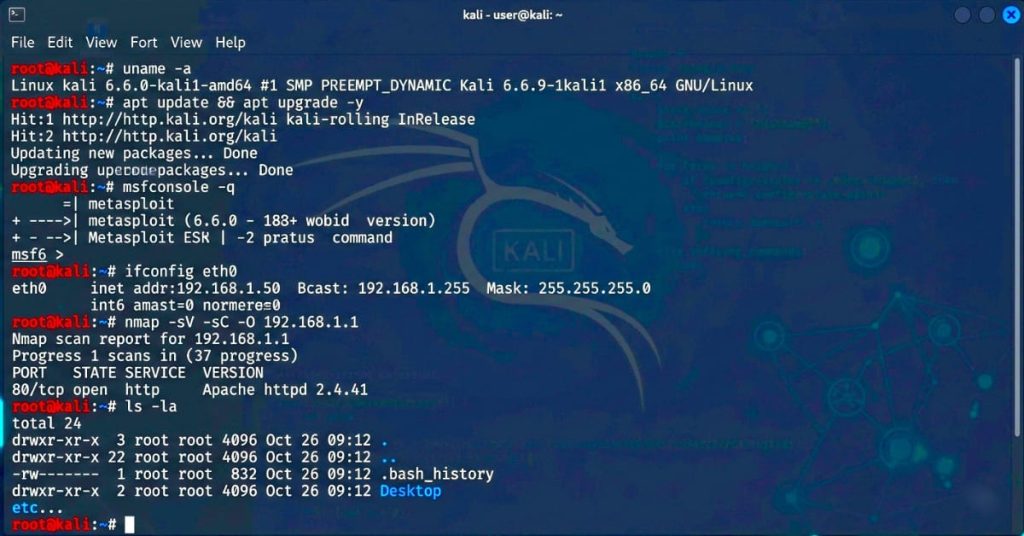
Here is a final list of useful Kali Linux commands that you can keep as a quick reference. You can use these commands for everyday terminal tasks, system management, networking, files, packages, and security testing.
pwd – Show the current directory.ls – List files and folders.cd – Change directory.mkdir – Create a new directory.touch – Create a new file.cp – Copy files or folders.mv – Move or rename files.rm – Remove files.rmdir – Remove empty directories.cat – Display file contents.nano – Edit a file in the terminal.clear – Clear the terminal screen.history – Show previously used commands.man – Open a command manual.sudo – Run a command with administrator privileges.apt update – Update package information.apt upgrade – Upgrade installed packages.apt install – Install a package.apt remove – Remove a package.apt search – Search for a package.apt list --installed – List installed packages.uname -a – Show system and kernel information.whoami – Show the current username.hostname – Show the system hostname.free -h – Show memory usage.df -h – Show disk space usage.du -sh – Show directory size.uptime – Show system uptime.lscpu – Show CPU information.lsblk – Show storage devices.ip addr – Show network interfaces and IP addresses.ip route – Show routing information.ping – Test network connectivity.ps – Show running processes.top – Monitor running processes.htop – Interactive process monitor.kill – Stop a process using its PID.killall – Stop processes by name.jobs – Show background jobs.fg – Bring a background job to the foreground.bg – Resume a stopped job in the background.git clone – Clone a Git repository.git status – Check repository status.git pull – Download the latest changes.git add – Add changes to the staging area.git commit – Save changes to the repository.git push – Upload changes to a remote repository.git branch – Manage Git branches.git checkout – Switch branches or restore files.git log – View commit history.git diff – Show changes between files or commits.chmod – Change file permissions.chown – Change file ownership.find – Search for files and directories.grep – Search for text inside files.sort – Sort text.uniq – Remove repeated lines.head – Show the beginning of a file.tail – Show the end of a file.wc – Count lines, words, and characters.cut – Extract parts of text.echo – Display text or variables.export – Set environment variables.env – Show environment variables.tar – Create and extract archives.zip – Create ZIP archives.unzip – Extract ZIP archives.curl – Transfer data from URLs.wget – Download files from the web.ssh – Connect to a remote system.scp – Copy files between systems.screen – Manage terminal sessions.tmux – Create and manage terminal sessions.crontab – Manage scheduled tasks.systemctl – Manage system services.reboot – Restart the system.shutdown – Shut down the system.You do not need to learn all Kali Linux commands in one day. Start with the basic commands and practice them regularly, then move on to package management, networking, processes, permissions, and advanced commands as you become more comfortable with the terminal.
You can download the Kali Linux commands list PDF to keep the most useful terminal commands in one place. It is useful for beginners who want to learn Kali Linux commands and quickly check a command when needed.
Download and save the PDF file on your device so you can easily open it and check Kali Linux commands anytime.
Kali Linux terminal commands can help you perform many tasks directly from the command line. You can manage files, install software, check system information, control processes, use Git, and work with different tools. Learn each command step by step and try them in your own terminal to understand Kali Linux better.